

TRAINER COMMAND CENTER
Welcome to Your TRAINER COMMAND CENTER Guidebook…Your go-to resource area that provides you with all essential updates, resources, and tutorials that you will need to start, manage and ultimately grow your very own WARRIOR APP Team Plan.
-
Step 1: Read through how to Set Up Your Team Plans on the TCC
-
Step 2: Read Through how to Manage Your Team Plan on the TCC
-
Step 3: Read Through What your Team Member Can Expect When Joining Your Team Plan.
Trainer Command Center Walk Through Video
Setting Up Your Team Plans
Step #1: Log in to The Trainer Command Center
Once you have been granted access to the Trainer Command Center you will receive an email asking you to set up your PASSWORD.

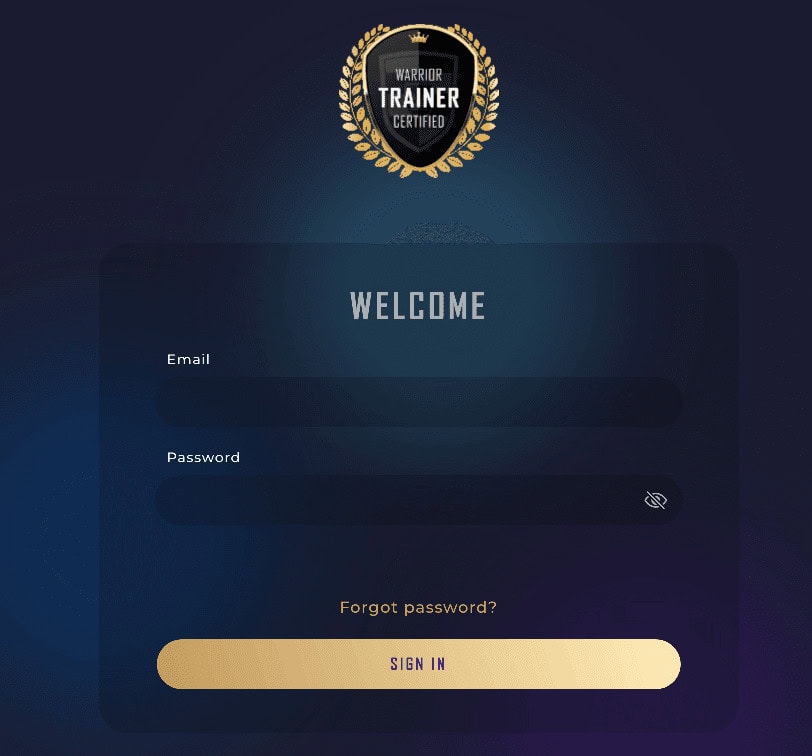
Once you have set up your password you will login by using your email address and password by going to https://app.warriortrainer.com/
Step #2: Add Credit Card Informaiton
Before you will be able to create any team plans you will need to add your Credit Card information.
Add in your Credit Card Number, Expiration Date and Security Code. Then Hit SAVE.

Once you have clicked the button the system will attempt to verify the card information. You don’t need to keep this popup up for this process to complete, so you can just click OK.

Once the card has been verified you will get a new popup informing you whether the card has been verified or not. If it fails to verify you will need to correct your Credit Card information or use a different Credit Card.
Once your card has been successfully verified you will be ready to set up team plans.
Step #3: Create Team Plan
To Create your team plan, you will start by clicking CREATE TEAM PLAN.

You then need to choose what type of team plan you are wanting to create. Your options are
- Core Plan
- Stack Plan
- Arsenal Plan

Team Plan pricing is based on the number of users currently in your program. Pricing shown is the monthly price, but user count is calculated daily.
Invoices are due on the 1st of each month.


Now give your Team Plan a name so you can identify it.
I recommend giving it the name of the program that team plan is associated with. Examples : Warrior Council, Warrior Launch, Warrior Trainers, etc.
If you have a tribe unit, all of this team plans members can be invited using that Tribe unit ID. You are able to do that by inputing the Tribe ID under “Connected Tribe Unit ID” and all new members added to this team plan will automatically get invited.
Where Do I find the Tribe Id?

By accessing the Warrior App from a browser, and opening up your tribe unit, you can find the Tribe Unit ID as the final part of the URL.
Managing Your Team Plans
Step #1: Adding Users To Your Plans
Once you have set up a team plan it is now time to add Members and/or Managers to your team plan.

You will have three different tabs to use here.
- General (Shows your team plan pricing and options)
- Managers (Allows you to add individuals who will have admin privileges over this team)
- Members (Manages your Team Plan members)
When adding or removing individuals from your Team Plan you will select the Members tab.
When adding or removing individuals as Managers over your Team Plan you will select the Managers tab. (Managers are like admins)

Once you have clicked the button to ADD MEMBER, you will get a popup asking you to enter their email address. Enter their email and then click ADD MEMBER.
If they already exist in the Warrior App at any level, they will be added to your team plan.

If they do not exist in the Warrior App, you will need to add a First and Last name before clicking ADD MEMBER. The system will then send them an email prompting them to create their password.

Step #2: Adding Users in Bulk via CSV
To add a list of new users all at once you can use the upload a CSV option.

To load a list of users you will need to have a CSV File (Can be created in Excel/Google Sheets or any other spreadsheet program) with the columns Email, First Name, Last name.
You can click Download Template to download a CSV file with the needed structure.
Once you have the CSV created simply add the Email address, First Name and Last Name of each individual you want to add, with one user per row.
At this point you are ready to upload your list. Click on “Upload CSV” and select the CSV file you created for this upload from your computers files.

You will then get a popup that will tell you if there are any errors in your CSV. Errors can be caused by having missing data or incorrect column structure.
Make sure all information is filled out and you follow the template.
Step #4: Switching Member Team Plans
Now if you have multiple team plans, how do you move a user form one to another?
To move a team member to a different team plan you will want to follow these steps.
- Remove them from their current team plan, by clicking on the Remove button from the Members section.
- Add the team member to the new team plan from the Add Members section
- The will be instantly updated and don’t need to take any actions on their part.
Click Funnels Course Integration
Step 1 : Creat Your Click Funnels 2.0 Course
The first step is the most important step…building your course!
Integrations only matter if your course is built and ready to be used.
Step 2 : Get Your API Token
Once you have added a member through their email address, or the Zapier integration, they will get an email to set up their password to the Warrior App if they don’t already have one.

Once you have added a member through their email address, or the Zapier integration, they will get an email to set up their password to the Warrior App if they don’t already have one.

Step 3 :Identify Courses You Want Imported
Now that you have connected your Click Funnels account and the Trainer Command Center, you can select the courses you want to import.
Start by clicking the “Import ClickFunnels Course” button to get started.

This will bring up a popup for selecting courses to import.
Because of your connection through the API Key we are able to pull up a list of all the ClickFunnels Courses that you have build in that ClickFunnels account.
If you have a lot of courses you can search through your courses based on course name or course ID.
Select the courses that you wish to import and then click the IMPORT button at the bottom of the popup.

Only published courses can be imported, drafts of courses cannot be imported until they are published.
Once imported the course will show in your list of imported courses.

Step 3 :Add Courses To Your Team Plans
Now that you have imported your list of courses into the ClickFunnels Courses you are ready to start adding them to your team plans.
Use the navigation menu to go back to your list of team plans, and click on the team plan you wish to make changes to.
You will see a Click Funnels Courses menu item on the General Tab

Click the dropdown below “Access to ClickFunnels Courses” and you will see a list of the courses that you imported.
Select the courses you want the members of this team plan to have access to.
Once you have added all the courses you wish to add, scroll to the bottom and click “SAVE” to save your changes.
In a couple of minutes all of the members of that team plan will see your new courses inside their in-app ARMORY in the Warrior App.
And that is it! Those are all the steps that you need to take to create and manage your team plans.
Your Clients Experience
Step 1 : Member Signs up For Your Program
The first step is the most important step…getting your client to sign up with your training program. That is the most important part of your sign up process.
Once they have signed up you will go and add them to your team plan as described above.
Step 2 : Member Receives Invitation Email
Once you have added a member through their email address, or the Zapier integration, they will get an email to set up their password to the Warrior App if they don’t already have one.
Hello,
Weston Bell has invited you to join the Free Level team on the Warrior App.
This will give you WarriorApp Core4 TEAM access.
Please click the confirmation link below to sign in and accept your invite.
Click here to join [Team Plan Name]
If you didn’t ask to verify this address, you can ignore this email.
Thanks,
Your Warrior apps team
Step 5 :Member Sets up Warrior App Password

Here the Customer will decide the Password they want to use to login, and then click “CONFIRM”.
They will then be taken back to the Login screen for the Warrior App were they will login with their Email and Password
Once your customer logs in they will have access to the areas of the app that are included in the team plan you added them to.